
So you lost your internet.
Router is not connecting, but you’re able to connect if you plugin directly to the modem with your desktop or laptop.
If you are currently connected to the modem via your desktop or laptop, don’t disconnect yet.
- Go to Start – Run – Type in CMD and then Enter
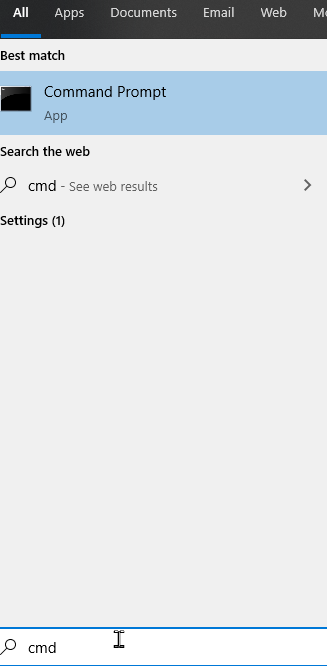
- From the new dialog box, type in
- ipconfig /all
- Open up notepad, and copy the Physical Address (ie Mac Address)

You may need this later to get the Router connected if the below method does not work.
Here is how to get the Router back on again:
- First, power off the modem. Power Off, Disconnect power cable. Disconnect the wall cable.
- Power off the Router.
- Wait 3-4 minutes.
- On the modem. Connect the wall cable in first. Then the power cable.
- Turn on the Modem.
- Important: Do not turn on the Router yet. Wait until the modem has fully connected to the internet
- Turn on the Router after 3-4 minutes after the modem has been switched on.
- Now, you should have the router connected again.
If it does not, go into the Router dashboard, somewhere within here, you should be able to change the Mac Address (ie Physcial Address) of the Router
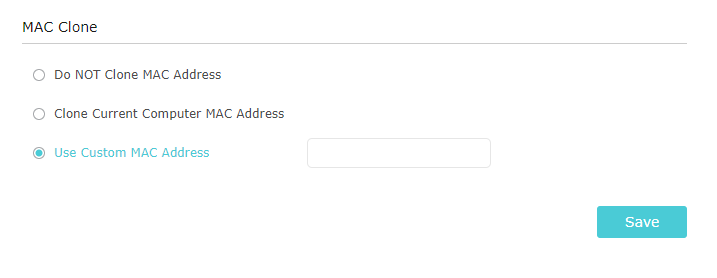 Enter that in, and reboot the Router. This should allow it to connect now.
Why does this happen?
The modem only remembers one particular Mac Address at a time. Sometimes it goes wonky and replaces the Mac address of the router with one it grabbed from somewhere else or one in cache.
Following these steps, it helps to remove the Mac Address from memory and allows you to reconnect the device desired.
